
This page contains specific information for users of screen readers.
Our website has been designed to be easily accessible with screen readers and other assistive technologies.
Many of our visitors use programs that read content aloud or output it in Braille. That is why we ensure that our pages are clearly structured, logically organized, and technically accessible.
Our goal is simple:
Everyone should be able to navigate our website—regardless of how they use it.
If you use a screen reader, you will find information on this page to help you navigate the site.
Understanding the Website’s Structure
Our pages are intentionally designed with clear heading levels and structured sections. Screen readers can recognize this structure, enabling quick navigation.
Typical page structure:
H1 – Page title
The title describes the page’s content.
H2 – Main sections
For example:
- Product information
- Ingredients
- Usage
- Ordering and Shipping
H3 – Sub-sections
Further details within a section.
Many screen readers allow you to jump directly between headings to reach the desired section more quickly.
Navigation with a screen reader
Our website features a clear navigation structure.
Important sections include:
- Main Navigation – Access to products and information
- Shop section – Overview of our aloe vera products
- Customer Service – Help, Shipping, Returns
- Accessibility – Information on accessible use
Many screen readers offer a feature to jump directly to landmarks or navigation areas.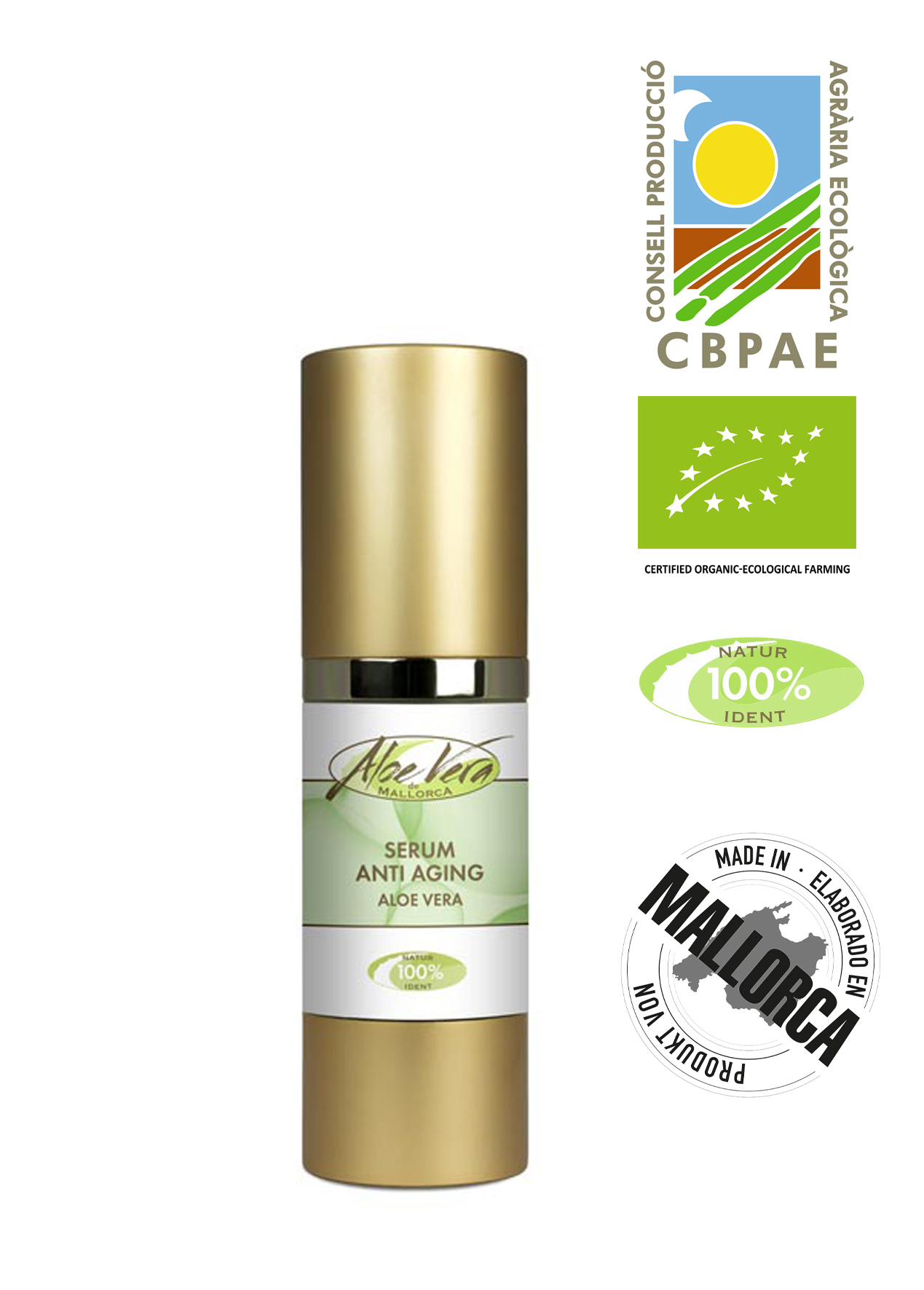
Accessible product pages
On our product pages, you’ll find all the important information in a structured order:
Product name
Short description
Images with alternative text
Ingredients
Recommended uses
Price and ordering options
The images of our products include descriptive alternative text so that screen readers can capture the content.
Example:
“Freshly harvested aloe vera leaves at the Aloe Vera Farm Mallorca”
This allows users without visual access to understand what is being shown.
Filling out forms with a screen reader
Input fields are clearly labeled
All form fields have assigned labels so that screen readers can recognize:
- what information is expected
- whether a field is required
If an entry is missing or incorrect, a clear error message is displayed that screen readers can also read.
The ordering process is divided into clearly defined steps:
Enter address
Select shipping
Select payment method
Review order
This structure makes it easy to navigate.
Additional support on our website
Text-to-speech function
Much of the content can be read aloud automatically.
Clearly structured content
Short paragraphs and clear language make listening easier.
Keyboard navigation
All important functions can be used without a mouse.
Transparent information
We explain the origin, production, and ingredients of our products clearly and comprehensively.
If you need assistance If you encounter any accessibility issues on our website or need assistance, we’re happy to help. Simply contact us: by email, phone, or through our contact form. We take feedback on accessibility very seriously and are constantly working to further improve our website. Because for us, accessibility means respect for everyone interested in our aloe vera products.
Screen Reader Shortcuts and Navigation
The following keyboard shortcuts are general screen reader commands. They may vary slightly depending on the software version.
Many screen readers offer keyboard shortcuts that allow you to navigate web pages more quickly.
These features help you jump directly to headings, links, or form fields without having to listen to the entire page.
Our website is structured so that these navigation features can be recognized by screen readers.
NVDA Screen Reader – Important Keyboard Shortcuts
NVDA is a free screen reader for Windows and is widely used worldwide.
Important shortcuts for navigating websites:
Jumps to the next heading
Jumps to a heading of a specific level
Jump to the next link
Jumps to the next form field
Jumps to the next button
Jumps to the next section (landmark)
List of all links on the page
These features help you quickly navigate our website.
VoiceOver (Apple) – important keyboard shortcuts
VoiceOver is the built-in screen reader on Mac, iPhone, and iPad.
Important navigation commands:
Opens the Rotor for navigating to elements (e.g., headings or links)
Jumps to the next heading
Jumps to the next link
Jumps to the next form field
Navigating between elements
The so-called Rotor allows you to navigate specifically through headings, links, or form fields.
JAWS Screen Reader – Important Keyboard Shortcuts
JAWS is a professional screen reader for Windows.
Frequently used shortcuts:
Jump to the next heading
Jump to the previous heading
Go to the next link
To the next form field
To the next region / landmark
Show list of all links
Show list of all headings
These functions allow users to quickly navigate through the content on our pages.
Tips for a pleasant experience on our website
Use heading navigation
Our pages are logically structured with headings.
Use link lists
Many screen readers can display all links on a page.
Use form navigation
This makes it easier to fill out order and contact forms.